

Odoo is a powerful open-source suite of integrated business applications used by many Kenyan businesses to streamline their operations. It supports CRM, sales, project management, manufacturing, inventory management, accounting, and more—all through a modular, easy-to-use interface that lets organizations deploy only the apps they need. When run as a containerized application, Odoo becomes even more efficient, offering Kenyan SMEs and enterprises faster deployment, better scalability, and stronger security for modern digital operations.


Odoo 19 Deployment in Kenya

Containerization packages an application and all its dependencies into a lightweight, portable unit called a container. Docker—one of the most widely used container platforms—makes it easy to deploy and manage these containers across different environments. Running Odoo in a Docker container ensures fast, consistent deployment on any infrastructure, while making it simple to scale resources up or down without disrupting system performance.

To simplify container management even further, Portainer provides an excellent solution. It is an open-source tool with a clean, intuitive interface that streamlines the deployment, monitoring, and maintenance of containers. With Portainer, you can easily create and configure stacks, networks, and volumes, making the management of Odoo containers effortless.

For Kenyan businesses modernizing their operations, containerizing Odoo delivers clear benefits—quick deployment, improved scalability, enhanced security, and reduced management overhead. By combining Docker for containerization and Portainer for user-friendly management, you gain a flexible, reliable, and efficient ERP environment.

This guide walks you through installing Odoo in a Docker environment and managing it seamlessly with Portainer.

Prerequisites


Before starting this tutorial, make sure your system has the following installed:

Although this guide works on Windows, macOS, and Linux, a Linux environment is strongly recommended for production—whether you're deploying on-premise or in the cloud. Linux offers greater stability, security, and performance, making it the preferred choice for reliable server infrastructures, especially for businesses running Odoo in Kenya.

Get A Server to Host your Odoo ERP

HPE ProLiant DL380 Gen12 8SFF Server | Intel Xeon 12-Core

(0)
Original price was: KSh 2,100,000.00.Current price is: KSh 1,790,000.00. Excl. VAT

HPE ProLiant DL380 Gen 11 Server | Intel Xeon Gold 6430 64GB RAM 3/3/3 Warranty

(0)
Original price was: KSh 1,500,000.00.Current price is: KSh 1,200,000.00. Excl. VAT

HPE ProLiant ML30 Gen11 | Xeon E-2434 | 16GB DDR5 | 4U Tower

(0)
Original price was: KSh 320,000.00.Current price is: KSh 307,000.00. Excl. VAT

HPE ProLiant DL380 Gen10 Server | Xeon-S 4208 | 32GB RAM

(0)
Original price was: KSh 385,000.00.Current price is: KSh 339,999.00. Excl. VAT

HPE ProLiant DL380 Gen10 | Xeon-G 5218 | 32GB RAM | 8 x SFF

(0)
Original price was: KSh 542,000.00.Current price is: KSh 525,000.00. Excl. VAT

HPE ProLiant DL380 Gen11 Rack Server 3 Year Warranty

(1)
Original price was: KSh 720,000.00.Current price is: KSh 700,000.00. Excl. VAT

HPE ProLiant DL380 Gen10 | Xeon-S 4210R | 32GB RAM | 8 x SFF

(0)
Original price was: KSh 390,000.00.Current price is: KSh 375,000.00. Excl. VAT

Dell PowerEdge R760 Rack Server.

(0)
Original price was: KSh 4,200,000.00.Current price is: KSh 3,699,999.00. Excl. VAT

Dell PowerEdge R260 Rack Server

(0)
Original price was: KSh 300,000.00.Current price is: KSh 289,999.00. Excl. VAT

Dell PowerEdge R760xs Rack Server

(0)
Original price was: KSh 700,000.00.Current price is: KSh 670,000.00. Excl. VAT
Portainer

Before diving into the Odoo installation, let's first set up Portainer, a powerful and user-friendly container management tool. In this section, I'll walk you through the process of installing Portainer, ensuring you have an efficient and seamless way to manage your Odoo containers and other Docker resources.

Docker-compose configuration

I'll be using a docker-compose.yml file to simplify the setup of Portainer.

The docker-compose.yml file outlines the necessary configuration for our Portainer instance, including the latest Portainer Community Edition image, container name, restart policy, security options, network connections, volume mounts, and port mappings.

Notably, the configuration includes a bind mount for the host's Docker socket, which allows Portainer to manage the Docker daemon on the host. Additionally, a named volume called "data" is defined for storing Portainer's configuration data.

Docker Compose will automatically create the required volume if it doesn’t already exist.

The Portainer container is connected to an external network named “web”, which you must create beforehand using:
docker network create web

Once this configuration is ready, running:
docker compose up -d --build

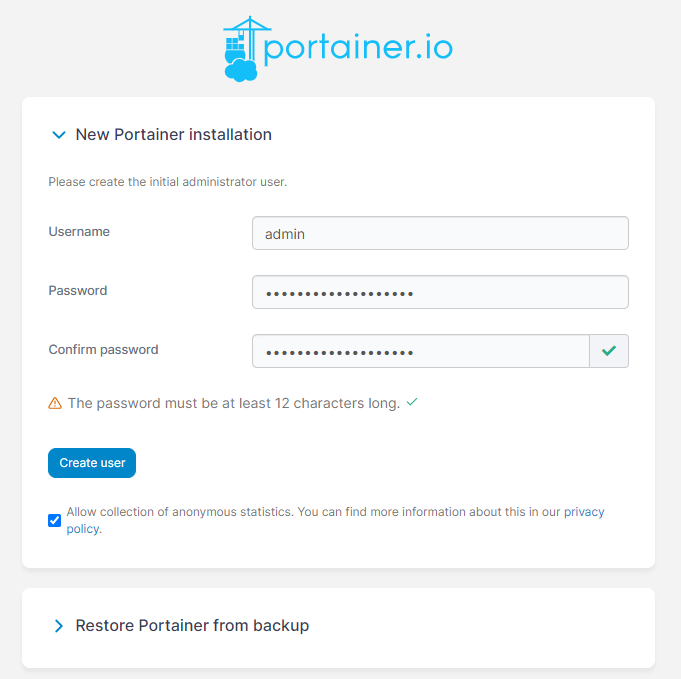
will deploy Portainer and get your environment up and running. You can access Portainer by visiting http://localhost:9000 (or your server’s IP address). If everything is set up correctly, you’ll be able to complete the initial setup and log in to your Portainer dashboard.

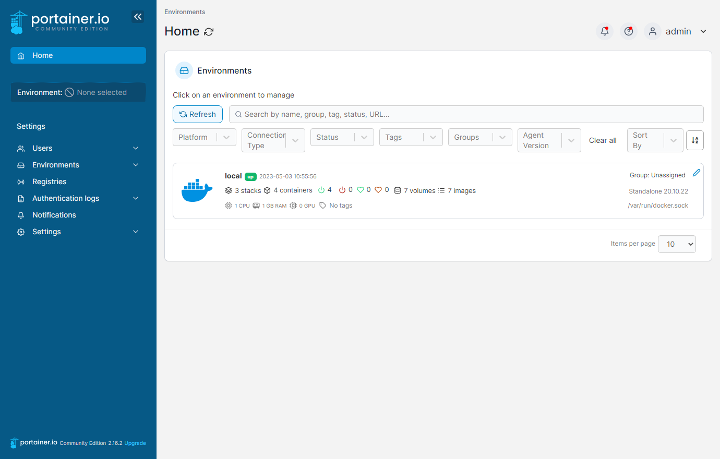
When you updated or created a user you get redirected to the main dashboard. If you click on your local environment you can start managing your containers.

Portainer

Installing Odoo
With Portainer now running, you can proceed to install Odoo along with PostgreSQL. In this section, you’ll deploy both components as a Stack in Portainer—giving you a fully integrated Odoo environment with a reliable database backend.

Follow these steps to install Odoo and PostgreSQL using Portainer:

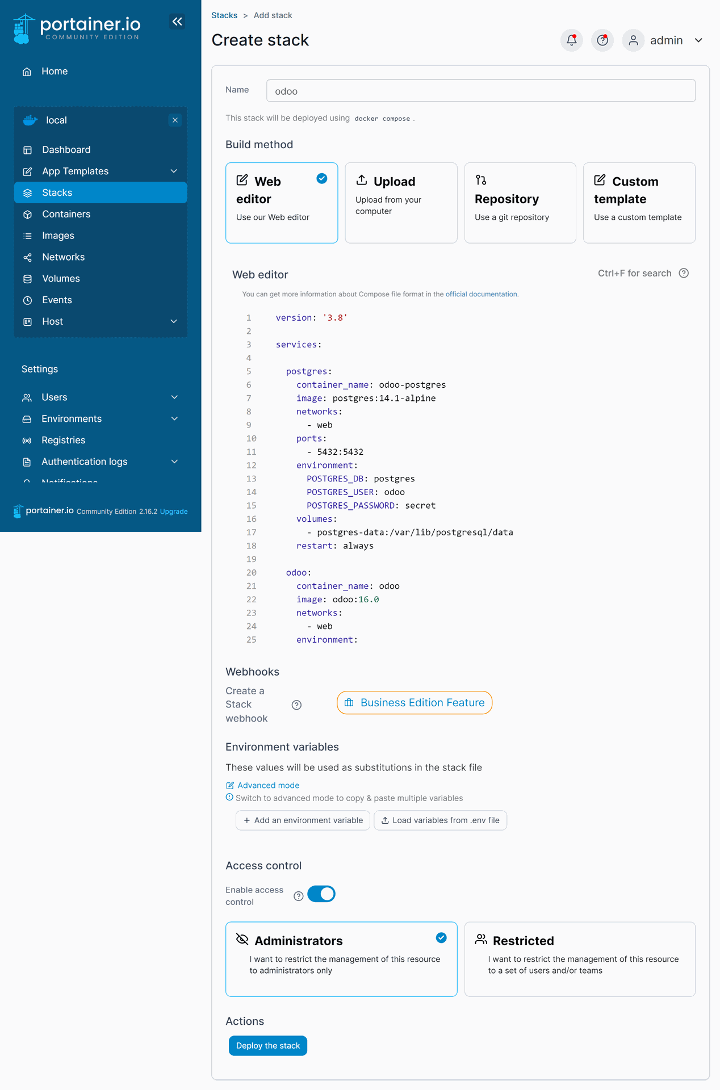
      1. In the Portainer dashboard, select “Stacks” from the left sidebar.
      2. Click “Add stack” in the top-right corner.
      3. Enter a name for your stack (e.g., “odoo”).
      4. Under the Web editor tab, paste the full docker-compose.yml file provided below.
      5. Click “Deploy the stack.”

Portainer will then create the necessary containers, networks, and services defined in your Compose file, automatically starting your Odoo environment.

The docker-compose.yml file defines two main services: postgres and odoo.
The PostgreSQL service uses the postgres:latest image and includes environment variables for the database name, user, and password. It also uses a named volume to ensure that database data is stored persistently.

The Odoo service runs on the odoo:latest image, connects directly to the PostgreSQL service, and includes the necessary environment variables for the database host, user, and password. It also defines named volumes for Odoo’s configuration files, extra add-ons, and data directories.

Both containers are attached to the external “web” network, ensuring seamless communication within the stack.

Deploy Odoo on Portainer

Note:
You could have deployed the stack using $ docker compose up -d --build, and it would appear in Portainer. However, creating a stack directly in Portainer offers several advantages:

        • User-friendly interface: Portainer provides a web-based GUI, making it easier to manage and monitor stacks, containers, and other Docker resources without relying on the command line.
        • Centralized management: Manage multiple Docker hosts and Swarm clusters from a single dashboard, simplifying operations across larger deployments or distributed teams.
        • Access control: Set up role-based access to define user permissions for stacks, containers, and networks—ideal for team environments.
        • Monitoring and logs: Built-in monitoring and easy access to container logs help you track performance and troubleshoot issues efficiently.
        • Template management: Create and deploy pre-configured application templates, allowing standardized deployments across multiple environments with minimal effort.

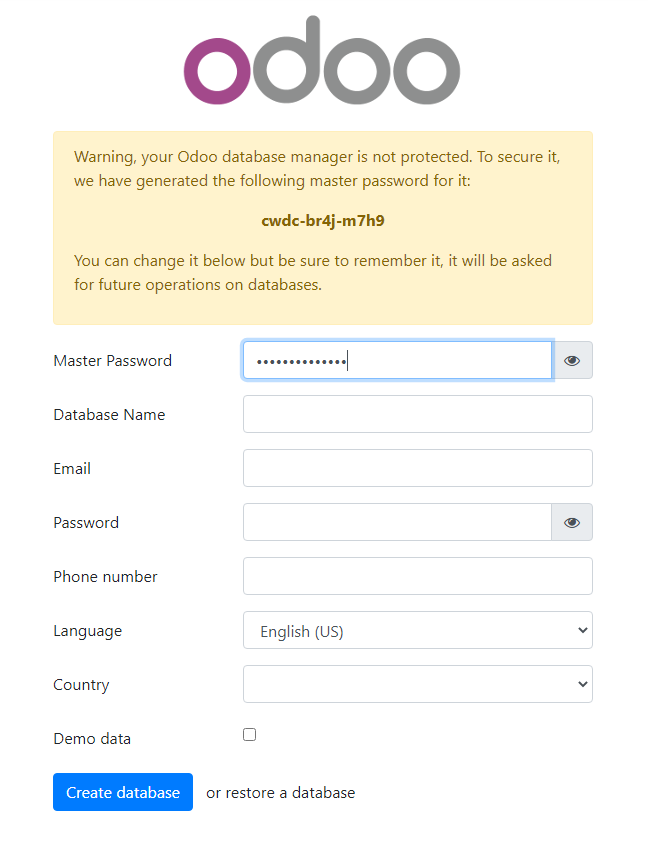
You can access your Odoo instance by visiting http://localhost:8069 (or your host’s IP address) in a web browser to complete the installation.

Odoo Installation

With Odoo and PostgreSQL successfully installed, you’re one step closer to a fully optimized business management system. The next step is to configure Traefik or Nginx as a reverse proxy to improve both accessibility and security for your Odoo instance.

Leave a Reply