




Veeam VBR 12.x to v13 Migration: Moving from Windows to the Linux-Based Veeam Software Appliance
Quick answer: Veeam Backup & Replication v13 (build 13.0.2.29, released May 27, 2026) replaces the Windows-based backup server with the Veeam Software Appliance (VSA), a hardened Linux virtual appliance. Migrating from VBR 12.x on Windows to v13 on Linux requires upgrading Windows VBR to v13 first, taking an encrypted configuration backup, deploying a new VSA, and importing that configuration using the built-in "Migrate" mode. Backup data and a few features (Cloud Connect, CDP policies, some storage integrations) do not transfer automatically and need manual handling.
Patchtech Solutions Limited helps organizations plan, execute, and validate this migration as part of our Backup and Disaster Recovery services.
Backup infrastructure doesn't often make headlines, but Veeam's latest release deserves attention from anyone responsible for keeping business data safe. With Veeam Backup & Replication v13, Veeam has introduced its biggest platform shift in years: a move away from the traditional Windows-based deployment toward the Veeam Software Appliance (VSA) — a fully hardened, Linux-based virtual appliance.
For organizations that have run Veeam on Windows for a decade or more, this isn't a routine patch. It's a platform migration, and it comes with real planning, testing, and — if not handled carefully — real risk. At Patchtech Solutions Limited, we help businesses navigate exactly this kind of infrastructure transition, and this migration is a good example of where the right guidance makes all the difference between a smooth cutover and a costly mistake.
What Is the Veeam Software Appliance (VSA)?
The Veeam Software Appliance is a pre-hardened, Linux-based virtual appliance that replaces the traditional Windows Server installation of Veeam Backup & Replication. It's managed through a Cockpit-based web interface (Veeam Host Management, port 10443) for OS-level tasks, while the familiar Windows console remains available for day-to-day backup administration.
Why Migrate from Windows VBR to Linux VSA?
- Stronger security — a minimal Linux OS footprint, hardened by default, with automatic security updates and FIPS mode support.
- Better performance, lower cost — reduced CPU and memory overhead compared to a full Windows Server install, and no Windows licensing required at the backup server layer.
- Simplified administration — a dedicated web interface for OS-level tasks alongside the familiar Windows console for backup management.
- Future-proofing — Veeam has signaled that appliance-based deployment is the direction of the platform, with the Windows version set to be phased out over time.
In our own testing across mixed vSphere, Proxmox, and XCP-NG environments, the VSA interface was noticeably faster to work with, and repository operations benefited from the Linux backend's optimizations.
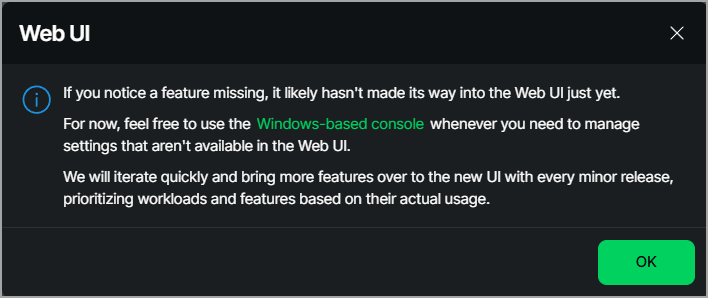
As of mid-2026, migration to VSA remains in a pilot phase for many organizations, and Veeam recommends engaging their support team directly during the process — something we always factor into a client engagement.
Pre-Migration Checklist: What to Prepare Before You Start
Licensing. VSA only supports the Veeam Universal License (VUL), instance-based. Older socket-based licenses need to be converted first.
Current environment readiness. Windows VBR should be fully patched to the latest 12.3.x line (build 12.3.1.1139 or later is the recommended baseline before stepping up to v13), with all release notes reviewed for deprecated features or unsupported platforms.
Infrastructure access. The new VSA needs clean network, DNS, and firewall access to every piece of protected infrastructure: vCenter, Hyper-V hosts, proxies, repositories, and agents. The appliance VM itself should be sized at least equal to the current backup server's CPU, RAM, and disk allocation.
Agent updates. All Veeam Agents (Windows, Linux, Mac) need to be upgraded before the source server moves to v13.
Known Migration Limitations (per Veeam KB4800)
- Cloud Connect deployments cannot be migrated
- Veeam Plug-in for Google Cloud configurations are not transferred
- Some storage snapshot integrations (certain HPE Nimble, Hitachi, and HPE XP models) may need reconfiguration
- CDP policies must be recreated manually
- A long history of pre-v12 job sessions can slow the migration — trimming session history retention beforehand helps
- Entra ID Tenant Backup jobs need special handling, ideally with a secondary destination configured in advance
How to Migrate from Veeam 12.x on Windows to Veeam v13 on Linux
At a high level, the migration process runs in four stages:
- Upgrade the existing Windows VBR server to v13 — stop jobs, disable schedules, take a full encrypted configuration backup, then run the standard v13 installer and validate.
- Deep environment preparation — remove unsupported components, apply the latest patches, document repository paths and custom scripts, and export a fresh encrypted configuration backup (.bco).
- Deploy the new VSA — build a new virtual machine to spec, install the appliance from ISO, license it, and configure it, with the Windows console connected for full management.
- Run the platform migration — using the Configuration Restore → Migrate mode workflow, import the encrypted configuration into the new appliance, bringing across the job database, policies, and inventory.
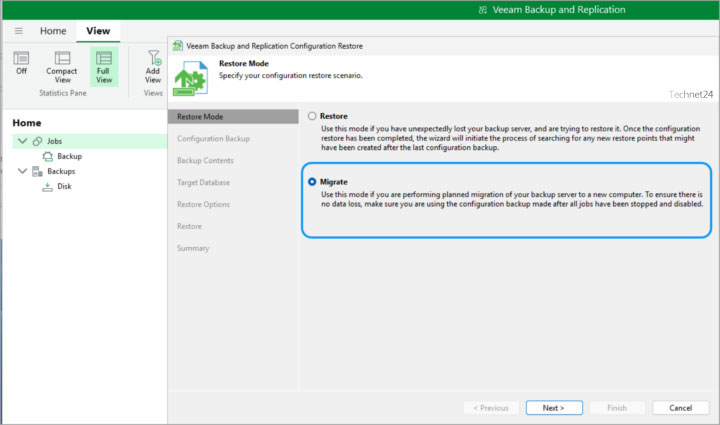
Backup data itself isn't moved automatically — repositories need to be rescanned and reconnected afterward. Once migrated, validate everything before decommissioning the old server: test restores across VM, file-level, and application-item levels, confirm proxy and repository health, and monitor through the new dashboard for at least a full backup cycle before anything old gets switched off.
Frequently Asked Questions
What is the difference between Veeam VBR 12.x and Veeam v13?
Veeam VBR 12.x runs as a traditional Windows Server installation. Veeam v13 introduces the option to run on the Veeam Software Appliance (VSA), a hardened Linux-based virtual appliance with lower resource overhead, a reduced attack surface, and a web-based management interface, alongside the existing Windows deployment option.
Is migrating to Veeam Software Appliance mandatory?
Not immediately, but Veeam has indicated the Windows-based deployment will be phased out over time, so organizations should plan a migration path. As of mid-2026 the VSA migration process is still in a pilot phase, so testing and Veeam support engagement are recommended before migrating production systems.
Does backup data automatically transfer during a VSA migration?
No. The migration process transfers the configuration database — jobs, policies, and inventory — but not the backup files or repository data themselves. After migration, repositories must be rescanned and reconnected to the new appliance.
What license do I need for Veeam Software Appliance?
VSA requires a Veeam Universal License (VUL) on an instance-based model. Older socket-based licenses are not supported and must be converted before migration.
What doesn't migrate automatically to Veeam v13 VSA?
Cloud Connect deployments, Veeam Plug-in for Google Cloud configurations, CDP policies, and some storage snapshot integrations (certain HPE Nimble, Hitachi, and HPE XP models) do not transfer automatically and require manual reconfiguration after migration.
Where Patchtech Solutions Comes In
This kind of migration touches licensing, virtualization infrastructure, network configuration, and an organization's most critical safety net — its backups — all at once. Getting any one piece wrong can mean downtime or, worse, a gap in recoverability right when it matters most.
Patchtech Solutions Limited works with businesses to plan and execute exactly this kind of transition safely:
- Assessment and planning — reviewing your current Veeam environment, licensing status, and infrastructure readiness before any changes are made
- Staged, low-risk execution — upgrading and preparing your existing environment first, keeping backups running throughout
- Hands-on migration support — deploying and configuring the new Veeam Software Appliance, running the platform migration, and handling the manual reconfiguration items (CDP policies, storage integrations, Entra ID backups) that don't transfer automatically
- Post-migration validation — proving restores actually work before we let you retire anything
- Ongoing backup and disaster recovery support — because a backup platform is only as good as the team keeping it healthy long after go-live
If your organization is running Veeam Backup & Replication on Windows and weighing whether — and when — to move to the new Linux-based appliance, we're happy to walk through what that would look like for your environment.
Talk to Patchtech Solutions About Your Backup & Disaster Recovery Strategy


